Retransfer vs. direct-to-card printers: when considering how you want to produce your highest-grade, professional ID-cards, you must decide between the two. The announcement of Evolis’s Avansia retransfer printer in 2015 raised a key question among many clients: What is the difference between a retransfer printer and a direct-to-card printer?
The short answer? It’s all about how the printer applies your card design to the ID-card. One method first applies the card image to a thin film, and then transfers the complete image onto the card in one pass; the other prints directly onto the surface of the card (I know! I was surprised too! 🙂 ).
Below, we’ve broken this down into 4 sub-questions to compare the two. And we briefly discuss the inner workings of retransfer vs. direct-to-card printers. If you’re more interested in the differences than the inner-workings, feel free to skip the next section.
Retransfer vs. Direct-to-Card Printers: the Methods
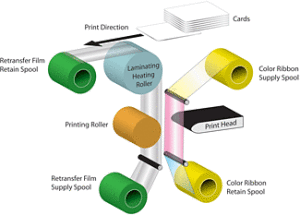
Retransfer print process image courtesy of Magicard.
With retransfer printers, your card design (images and text) are first printed onto a clear “transfer film”. This is accomplished through a series of passes, one for each color being applied or created. The full, finished card-image is then thermally fused to the card’s surface. The transfer film helps protect the printed card details from abrasion and color fading, due to UV-light sources.
On the other hand, direct-to-card printers place the images and text directly onto the card. With this method, the card and print-ribbon pass over the stationary print-head, sequentially applying yellow, magenta, cyan and black ink (YMCK) to create virtually any color. After applying the color inks, the printer then applies a clear varnish across the full surface of the card, so as to protect the printed image.
What are the differences in results?
By laying the film over the card, a retransfer printer is capable of “over-the-edge” printing that maximizes the card’s surface area. Because the transfer film and applied image can be slightly longer and wider than the card itself, there is no visible margin. If you want a background image that covers the entire card, this is how best to achieve that result. The transfer film also acts as a protective barrier that renders the image slightly more durable.
A direct-to-card printer leaves a very thin border around the edges (only 1mm or so). This “near-to-edge” printing suffices if the card color itself serves as the background color for your ID design, or if full-card coverage is otherwise not required.
HID Global, maker of the Fargo HDP5000, HDPii, HDP5600 & HDP8500 retansfer printers states that retransfer printers create sharper, glossier images (a result of the gloss finish of retransfer films) while the clear varnish overlay applied by direct-to-card printers results in a matte finish. Importantly, the retransfer printing process is more forgiving of slight imperfections in a card’s surface. This is particularly beneficial if you print proximity access cards or smart-cards, as there is often a slight “dimple” on the card surface in-line with the internal electronic components. The retransfer method can also mask minor surface scratches, and even fingerprints.
Direct-to-card printers might not correctly render images over such surface items, resulting in imperfect color(s), or leaving small areas unprinted. Note that you can prevent some causes of these card-surface and print-quality issues by taking measures to protect your unused cards:
- Handle cards only by their edges to prevent fingerprints from affecting printable surfaces.
- Store unused cards in a closed container, and in a clean and dry location to avoid dust and surface damage.
What are the similarities?
Both print processes involve application of a full-card image, via thermal print-ribbons to the card surface – the retransfer printer just includes an additional step due to the use of retransfer film.
Both are designed to create durable cards. But all cards are subject to wear. To get the maximum life out of your cards, employ composite cards, add a lamination module to the printer (optional on certain printers), or wear finished cards within protective badge holders.
What materials do they require?
Both printer types require the use of color or monochrome print-ribbons. Retransfer printers additionally require clear retransfer film, on which the card design is first printed and then fused to the card. Typical ribbon designations for retransfer printers include YMCK & YMCKK.
Rather than using a retransfer film, direct-to-card printers use ribbons with an integrated varnish-overlay. This clear vanish overlay is applied as the last step in the print process, to protect the image from wear and fading in sunlight. Typical DTC ribbon designations are: KO, YMCKO, & YMCKOK.
The Bottom Line
Deciding between retransfer and direct-to-card printers really comes down to your use case. The retransfer printer helps you maximize your card’s surface, is more forgiving of imperfections, and is generally regarded as producing a better, glossier image. The direct-to-card printer removes the need for retransfer film and applies your design directly to the card, eliminating a step. Finally, retransfer printers and their supplies generally cost more than direct-to-card printers and their related supplies, so your budget will play a role in deciding which is right for your organization.
At the end of the day, which printer you need is always going to come down to your specific requirements. Hopefully this blog entry will help you think through that process.
Need more info?
Questions? Concerns? Not sure what printer is best for you? Call our ID-card experts toll-free at +1-888-485-4696 (US & Canada), or +1-704-535-5200 (elsewhere) for a free consulation. We are always glad to help!


 As part of its continuous improvement policy, Evolis has recently released new firmware version 1801 for their main printer lines. Keeping your firmware up-to-date helps ensure that your printer works at peak performance. Often clients with out of date firmware will have trouble with their printer recognizing new ribbons or interacting with their computers. By keeping your firmware current, you can avoid many of these difficulties.

 HID Prox Card